If you've enabled subtitles but they aren't appearing, don't worry. Most subtitle issues are caused by format errors or device settings that are easy to fix.
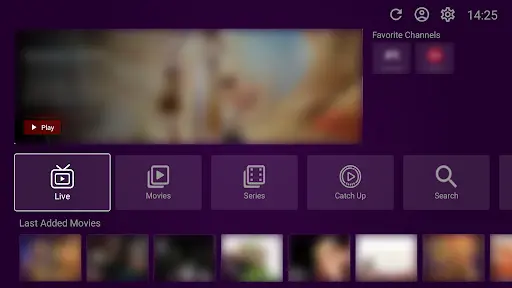
Before we dive in: VU Player Pro is a third-party application developed by IRBOETECH CO., LIMITED. We are not the owners or developers of the app. We are an independent provider of high-quality IPTV playlists. VU Player Pro is a paid application with a 7-day free trial that you can use to test all features.
Quick Diagnosis
First, check if the content you are watching actually has subtitles. Live TV channels rarely have them. Movies and Series usually do. If the "CC" button is grayed out, the source doesn't have a subtitle track.
External Player Fix
This is the #1 fix. The built-in player has limited subtitle support. If you switch to VLC Media Player as an external player in the app settings, it will handle almost any subtitle format perfectly. VLC can also download missing subtitles automatically while you watch.
Device-Specific Issues
Some LG Smart TVs (webOS) have a known bug with subtitle rendering in third-party apps. If you are using an LG TV and subtitles won't show, we highly recommend using a Firestick or Android Box, as these devices have much better subtitle compatibility.
Manual SRT Naming
If you are using your own local files, ensure the .srt file has the exact same name as the video file. If there is even one different character, the app will not "see" the subtitles.
High-Quality Streaming
Our playlists include multiple audio and subtitle tracks for the best movie experience.
Frequently Asked Questions
Can I change the subtitle color?
Yes, in the app settings under "Player Settings," you can often adjust the font size, color, and background of the subtitles.
Why are my subtitles in the wrong language?
Tap the subtitle icon during playback and check the list. You may have accidentally selected a different language track.