Watching international movies is better with subtitles. If you want to know which formats work and how to fix subtitle lag, this guide has the answers.
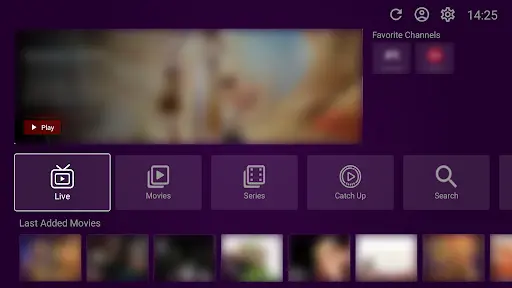
Important Reminder: VU Player Pro is a third-party application created by IRBOETECH CO., LIMITED. We are not the owners of the app. Our service provides premium IPTV playlists that load into the player. VU Player Pro is a paid application with a 7-day free trial that you can use to test all features, including subtitle support.
Supported Formats
The app natively supports the most common subtitle format: SubRip (.srt). This format is simple text-based and works on almost all devices.
SRT Guide
For SRT subtitles to work, you must name the subtitle file exactly like the movie file. For example:
movie_name.srt
The VLC Solution
If your subtitles are in a complex format like SSA/ASS (which allows for colors and special fonts), the built-in player might not show them correctly. The best fix is to use VLC Media Player as an external player inside the app settings.
Customization
In the app settings, you can change the subtitle size and color. If the subtitles are too fast or too slow, using an external player like VLC allows you to manually "sync" the timing while you watch.
Global Content, Local Feel
Get a premium playlist with high-quality movie sources and full subtitle compatibility.
Frequently Asked Questions
Why are my subtitles out of sync?
This usually happens when the subtitle file was made for a different version of the movie (different frame rate). Try downloading a different SRT file from OpenSubtitles.
Can I download subtitles inside the app?
The app currently relies on the subtitle tracks provided in the playlist. If you need to search for new ones, using VLC as an external player allows you to search for subtitles online automatically.