
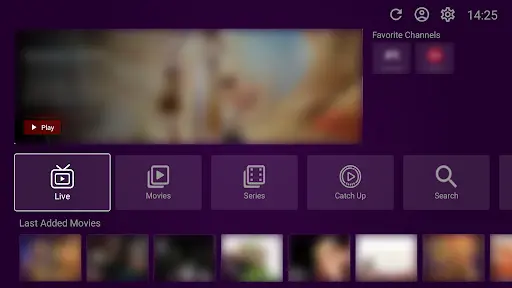
Protecting your family from inappropriate content is easy with parental controls. You can lock specific categories and ensure your children only see what is safe for them.
Please note: VU Player Pro is a third-party application developed by IRBOETECH CO., LIMITED. We are not the owners or creators of this app. Our company provides high-performance IPTV playlists that work inside the player. VU Player Pro is a paid application that offers a 7-day free trial to let you test the parental control features before buying.
Setting Up
To start, open the app and find the Settings gear. Look for the "Parental Controls" option. The first thing the app will ask you to do is create a 4-digit PIN. This PIN will be required every time someone tries to access a locked channel.
Content Locking
You don't have to lock everything. You can choose to lock only:
- Adult Categories: Automatically hide all 18+ content.
- Specific Genres: Lock horror movies or news if you prefer.
- Specific Channels: Manually lock any channel you don't want visible.
Security Tips
Do not use easy PINs like "0000" or "1234." If you forget your PIN, you may have to reinstall the app and re-add your playlist, which can be time-consuming. Keep your PIN in a safe place where only you can find it.
Troubleshooting
If you find that a channel is still visible after locking a category, try restarting the app. Sometimes the "cache" needs to clear before the lock takes effect on the channel list.
Family-Safe Entertainment
Get a premium playlist with full EPG and parental control support.
Frequently Asked Questions
Can I lock the whole app?
No, the controls are usually for specific categories or content. If you want to lock the app itself, you may need a device-level app locker.
Will the PIN sync across devices?
No. Parental control settings are saved locally on the device for security. You must set it up on each device individually.