VU Player Pro is your gateway to unlimited entertainment with over 40,000+ live channels and 100,000+ VOD titles. This comprehensive guide will walk you through everything you need to know to get started and make the most of your viewing experience.
It is essential to clarify that VU Player Pro is a third-party paid application. While we provide high-performance IPTV playlists that work seamlessly with this app, we do not own or create the software itself. VU Player Pro offers users a 7-day free trial, after which a license activation is required to continue using the player's premium interface.
Prerequisites
- VU Player Pro App: Installed on your Firestick, Smart TV, or Android device
- IPTV Subscription: Get a premium playlist from us
- Credentials: Your M3U URL or Xtream Codes login
- Internet: High-speed connection (10Mbps+ recommended)
Step 1: First Launch
When you first open VU Player Pro, the app will ask for basic permissions. Grant these to ensure the app can store your EPG data and load channels correctly. You will be greeted by the 7-day trial notice if the app is not yet activated.
Step 2: Enter Subscription Details
- Go to Settings or Add Playlist
- Select Xtream Codes API (recommended) or M3U Playlist
- Enter your Username, Password, and Server URL provided by us
- Click Connect to load your 40,000+ channels
Understanding the Interface
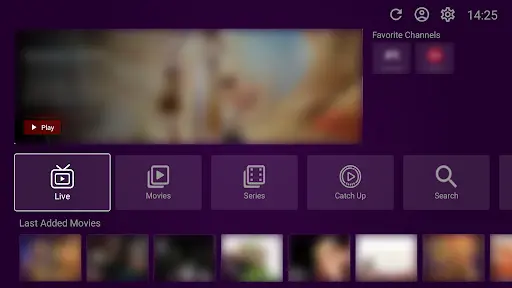
The main dashboard is divided into three primary categories: **Live TV**, **Movies**, and **Series**. Use your remote's arrow keys to navigate and the 'OK' button to select content.
Watching Live TV
In the Live TV section, channels are organized by country and genre. You can view the EPG (program guide) to see what's currently playing and what's coming up next.
Movies & VOD
The Movies and Series sections offer a Netflix-style interface where you can browse by genre, search for titles, and even see IMDB ratings for most content.
Managing Favorites
To add a channel or movie to your Favorites, simply long-press the 'OK' button on your remote while highlighting the item. This makes it easy to find your most-watched content instantly from the home screen.
Ready to Experience 4K Streaming?
Get your premium playlist and start using VU Player Pro today.
Optimization Tips
For the best experience, we recommend using an Ethernet cable instead of Wi-Fi. In the app settings, you can also adjust the "Buffer Size" to 5 or 10 seconds if you experience minor stuttering on slower connections.
Troubleshooting
If channels fail to load, restart your router and device first. Most issues are resolved by refreshing the playlist in the app settings. For persistent issues, our 24/7 support team is always ready to help.